Wombat Firmware 3.24 Adds USB Game Controller Mapping for ADB Macs
- Steve
- 793 reads
Wombat 3.24 maps USB controller buttons and sticks to ADB keys and mouse input, with four presets and four learnable profiles.
Firmware 3.24 gives the ADB-USB Wombat a new way to connect modern USB game controllers to older Mac games: it translates controller buttons and stick movements into ADB keyboard input and mouse activity. The update offers four fixed layouts, four customizable profiles, and two approaches to using the right stick as a pointer. The most useful test now is how those pointer modes feel across different controllers, games, and Mac mouse settings.
The firmware can be downloaded as Wombat firmware 3.24. Its built-in profiles are named ARROWS, WASD, KEYPAD, and FLIGHT. A shortcut lets the player switch profiles using Select with a direction on the controller’s D-pad: up selects ARROWS, right selects WASD, down selects KEYPAD, and left selects FLIGHT.
Four fixed layouts cover common game controls
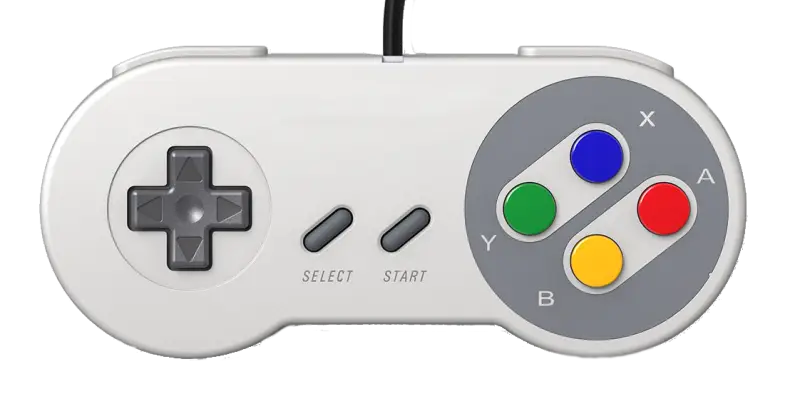
Across all four profiles, the D-pad and left stick serve as directional controls. ARROWS sends the arrow keys; WASD sends W, A, S, and D; KEYPAD uses keypad 8, 4, 2, and 6. FLIGHT maps the directions to =, Z, –, and X, respectively. Those mappings give the same physical controller several ways to match games that expect different keyboard conventions.
The face buttons and shoulder controls add common actions. A sends Space and B sends Shift in every profile. X and Y vary: ARROWS assigns W and R; WASD assigns E and Q; KEYPAD assigns keypad 5 and keypad 0; FLIGHT assigns F and G. L1 produces a mouse click in each layout. R2 sends Tab and Start sends Esc throughout. L2 slows pointer movement, while R3 switches pointer mode.
R1 sends Command in ARROWS, WASD, and KEYPAD, but sends A in FLIGHT. These presets are intended to match Prince of Persia, Dark Castle, Power Pete, and Hellcats Over the Pacific, respectively. Other games may also fit a preset, depending on their keyboard and mouse controls.
Custom profiles learn keys and mouse actions
For games that don’t match the fixed layouts, the Wombat preferences menu provides four customizable profiles and a learning mode. The setup process associates a controller button with an action: press the button, then press the keyboard key it should produce. Pressing two keyboard keys together assigns a two-key combination. A mouse click can also be assigned, and Select can be used to leave a controller button inactive.
Custom profiles can also swap the roles of the left and right sticks. If experimentation produces a layout that’s hard to recover, it can be reset by cloning one of the fixed profiles. That gives users a starting point while keeping the custom profile’s mappings adjustable.
Controller compatibility still needs testing
The firmware is intended to work with USB controllers in either X-Input or Direct Input mode. Direct testing so far has covered one model, the Logitech F310, so compatibility across other controllers remains an open question. Differences in how controllers report their buttons and stick positions may affect whether a device works as expected.
For a controller that misbehaves, a browser-based diagnostic page can collect technical data for review. Connect the controller to a PC or Mac, open the page in Chrome or Edge, and follow its instructions to create a log file: Wombat controller test page. The page does not work with Firefox or Safari, according to its instructions.
Two pointer modes solve different problems
Turning a game stick into mouse input takes more than translating its position directly into pointer coordinates. A stick reports an absolute position within a small range; a mouse reports relative movement and can travel across the desk. Wombat’s relative pointer mode treats stick deflection as a request to keep moving. Hold the stick slightly left of center and the pointer moves left; push farther and it moves faster. Let the stick return to center and movement stops, leaving the pointer where it landed. Holding L2 slows that movement to help with finer positioning.
The feel depends on several settings. The firmware’s dead zone, the relationship between stick deflection and pointer speed, and the minimum and maximum movement rates all affect control. So do the Mac’s Mouse control panel settings and the pointer speed setting in Wombat preferences. The firmware has been tuned using a handful of classic Mac games, but feedback across more systems and controllers will help establish whether those choices work beyond the initial test cases.
Auto-center mode instead ties the pointer’s on-screen position to the stick: move the stick left and the pointer moves left of center; return the stick to center and the pointer returns to the middle. That behavior can suit flight simulators and games that use the mouse for aiming, since holding a steady stick position doesn’t keep driving the pointer across the screen.
Auto-center has tighter setup constraints. A Mac doesn’t natively handle this kind of absolute pointing input, so the mode relies on the Mouse control panel being set to Tablet / Slowest. It also depends on the pointer’s starting location and the screen resolution. If the pointer reaches the screen edge, the mapping can stop behaving as intended. The current implementation is tuned for 640×480 screens.
R3 toggles between relative and auto-center pointer modes in any profile. FLIGHT starts in auto-center mode; ARROWS, WASD, and KEYPAD start in relative mode. That split reflects the different jobs the modes are meant to handle, while leaving the choice available during play. Feedback on pointer feel, controller compatibility, and the practical effect of Mac mouse settings will show where the firmware’s mappings need adjustment.