Run a Cycle-Accurate BBC Micro Emulator on Presto’s RP2350
- Les Pounder
- 679 reads
Dominic Pajak’s emulator brings BBC Model B and Master 128 software to Presto, with Elite, a virtual keyboard and Wi-Fi browser controls.
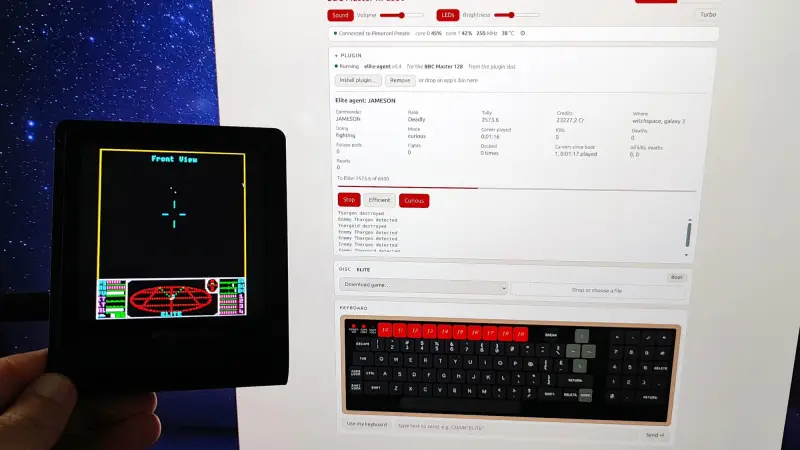
Presto can serve as a small, self-playing BBC Micro display as well as a desktop touchscreen. Dominic Pajak’s rp2350-bbc-micro emulates a BBC Model B or BBC Master 128 on the RP2350-powered device. It starts with a playable scene from Elite, and lets you load other games and applications through a virtual keyboard or a connected keyboard.
The appeal is partly practical and partly nostalgic. The BBC Micro became a familiar sight in British classrooms and homes after the BBC’s Computer Literacy project led Acorn Computers to build the machine. Alongside computers from Sinclair and Commodore, it helped shape the UK’s 1980s home-computing scene. For retro-computing enthusiasts, running its software on a compact modern device offers a way to revisit that era without setting up an original computer and display.
A familiar machine on a small screen
The emulator is described as cycle-accurate and supports two Acorn systems: the BBC Model B and BBC Master 128. That level of timing fidelity aims to reproduce how the original hardware behaves as it runs software. The practical payoff is that the device can run classic programs in a form intended to feel closer to the original machine than a simple visual recreation.
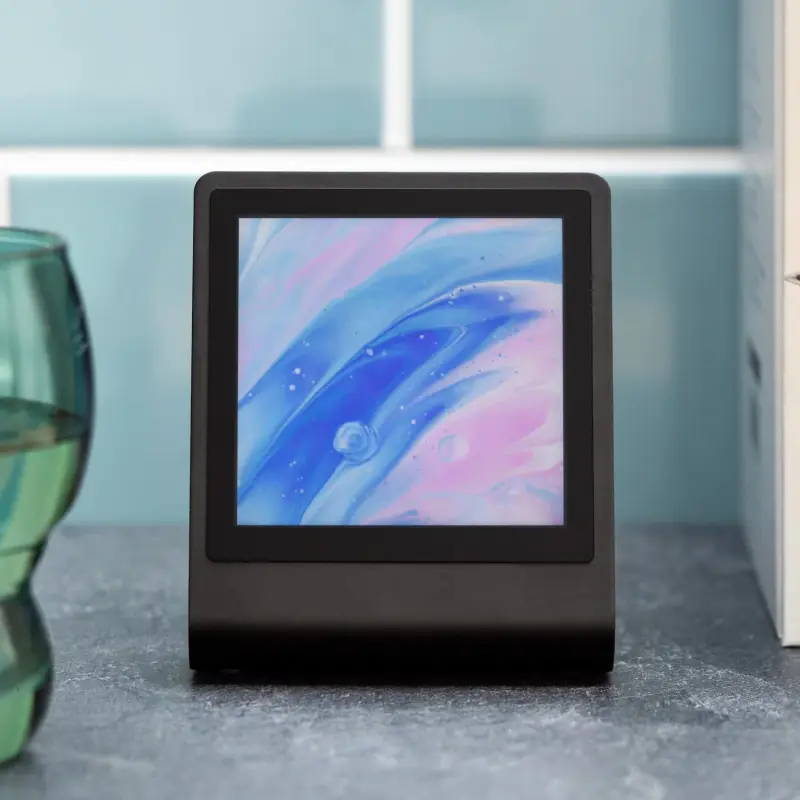
Presto’s square touchscreen provides the display, while its stand makes the system easy to leave on a desk. The emulator starts in a self-playing version of Elite, giving the screen an animated scene when nobody is using it. You can take control and explore the game yourself, or switch to other software. The result works as both a small retro-computing exhibit and a usable emulator.
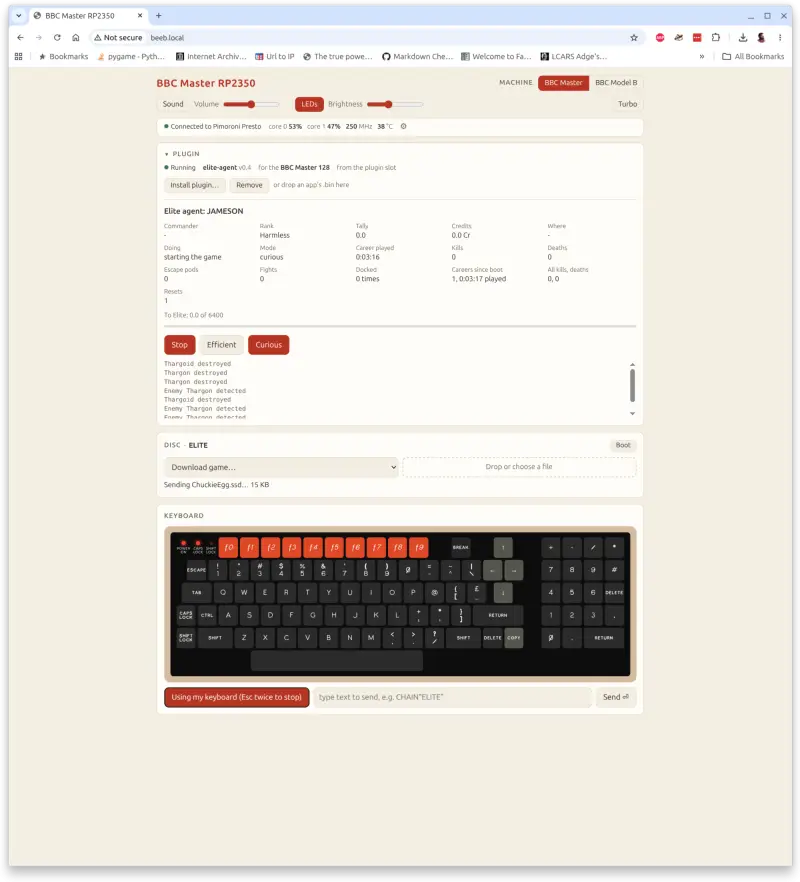
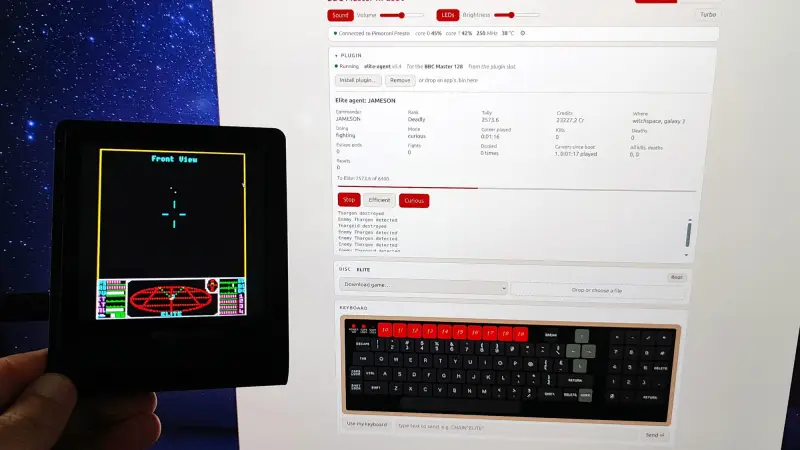
Input is handled in two ways. A virtual keyboard can be used on the touchscreen, and a physical keyboard can connect through the web interface running on Presto. That gives users a choice between keeping the setup self-contained and using familiar keys for games or applications that need more frequent input. The interface is also where you can change the selected machine and load software.
Getting the emulator online
A pre-built image is available to flash onto Presto, and connecting the device to a computer starts the emulator automatically. The browser-based controls require an additional Wi-Fi setup using the project’s repository. In the repository’s tools directory, copy secrets.example.py to secrets.py, then edit that file with the Wi-Fi details for the network you intend to use.
cd tools/
cp secrets.example.py secrets.py
python3 presto.py wifi secrets.py
After writing the network configuration and allowing the device a few seconds to connect, open beeb.local in a browser on the same network. The interface provides access to the machine and game selection, along with keyboard controls. The project’s GitHub page has the emulator files and setup details.
What it changes for a retro setup
This setup brings the emulator, display and controls together in one compact unit. That makes it convenient for demonstrations and casual play: there is no need to dedicate a full-size monitor to a machine that can sit beside a keyboard or other desk hardware. The browser interface also gives the device a straightforward way to manage software without making every interaction depend on the touchscreen.
That convenience comes with a setup distinction worth keeping in mind. The pre-built image gets the emulator running, while Wi-Fi control depends on configuring network details and writing them to Presto. The two paths suit different uses: a self-playing display can run locally, while loading and controlling software through the browser calls for the extra network setup.
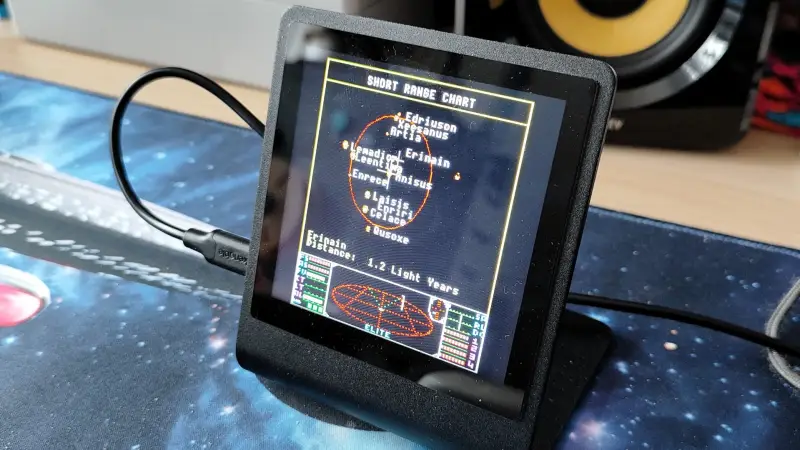
Classic titles such as Chuckie Egg are examples of the sort of software users can try after setup. The emulator’s broader value will depend on the programs each user chooses and how they prefer to interact with them, but support for both virtual and physical keyboards gives it room for more than a looping display. For owners of Presto, the RP2350 emulator turns a touchscreen desk companion into a compact window onto two well-known Acorn computers.