RoboDK AI Assistants Split Robot Programming Between Commands and Guidance
- Alex Owen-Hill
- 441 reads
RoboDK Companion builds programs from text or voice commands; its Virtual Assistant answers questions about simulation, programming and automation.

RoboDK’s two AI add-ins address different parts of robot programming: one turns natural-language requests into software actions, while the other explains how to work through a problem. That division can save time spent searching menus and documentation, provided engineers still check the resulting program and simulation.
The RoboDK Companion is designed to carry out commands inside RoboDK. The Virtual Assistant is intended for questions about robot simulation, programming and automation. Both are available as add-ins, and RoboDK also offers an online assistant chat.

One assistant acts; the other explains
Companion accepts natural-language commands by text or speech-to-text voice input. Its command set covers common programming and simulation tasks: adding joint, linear or circular moves; sending the robot to its home target; setting speed; inserting a pause; selecting a tool frame (TCP) or reference frame; and setting digital outputs.
It can also control a simulation, including starting or pausing a program, switching to fast simulation mode and enabling or disabling collision checking. For code generation, users can ask Companion to generate a robot program or send the program to the robot. The add-in’s accessibility features include hands-free operation, high-contrast support and a simplified interface.
The Virtual Assistant has a different job. It answers questions in multiple languages, drawing on RoboDK documentation, forums and blogs. That makes it a guide for users who need to understand a feature or decide what to investigate next, rather than an interface for issuing RoboDK commands.
The two can be used separately or together. A practical division is to ask the Virtual Assistant for help understanding a programming issue, then use Companion to perform supported actions in the software. This can reduce time spent learning the interface, but it doesn’t replace engineering judgment or checking the result.
Turning a description into a robot program
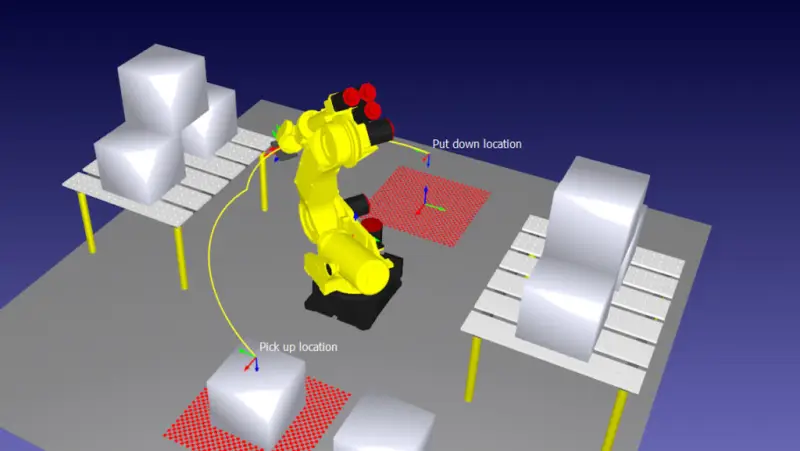
Companion can build a program through a step-by-step conversation. For example, after setting up reference frames, a user could request linear moves through frames A, B, C and D in that order, with the move from B to C at half speed. The request combines path order and a speed change in one instruction.
That kind of input can shorten routine programming. The trade-off is that a plain-language request still needs to match the intended motion and the station setup. Engineers should inspect the generated instructions and confirm that the simulated robot follows the required path before using the program on a real system.
Using guidance to debug a path
The Virtual Assistant can help structure an investigation when a robot’s simulated path looks wrong. One example starts with a broad question about possible causes; the assistant points to a frame or tool mismatch, or another configuration issue. The user can then narrow the diagnosis by checking whether the active program tool matches the robot’s TCP.
In RoboDK, the suggested check is to select the tool in the station tree, open its properties and compare the TCP values. If they differ, the tool should be updated with the correct values and the path recalculated. To regenerate it, select the program in the program tree, right-click and choose “Update” or “Recompute.”
The next check is whether the simulated and real tool tips reach the same point and orientation. A mismatch may appear as a path with the right shape but a consistent shift, rotation or tilt. Once the simulated and real paths agree, the example recommends generating the robot program with the appropriate post processor before running it on the real controller.
These steps are useful as a troubleshooting outline, but the assistant’s answer is not a measurement of the physical setup. The engineer still needs to verify the tool and frame values, the robot’s motion and the controller program. Simulation agreement is a check to perform, not a substitute for validating the cell and its operating requirements.

Choosing an add-in and getting started
The main distinction is straightforward: Companion is for doing work faster; the Virtual Assistant is for understanding it faster. Companion uses native RoboDK commands and accepts text or speech-to-text requests. The Virtual Assistant responds to questions using documentation, forums and blogs, with multilingual support.
Both add-ins can be downloaded from the RoboDK add-in library and installed through the Add-in Manager. RoboDK also provides a quick tutorial video, plus feature information for the Companion and Virtual Assistant.
For teams evaluating the tools, the useful question is which task is taking time: entering routine instructions, or finding and understanding the right workflow. Companion targets the first; the Virtual Assistant targets the second. Trying each on a bounded task makes it easier to judge where conversational input fits into an existing programming and verification process.